
ReoGrid supports multi-row column headers, allowing you to create complex header structures with multiple rows, merged cells, and individual styling. This feature is useful for displaying hierarchical or grouped column headers.
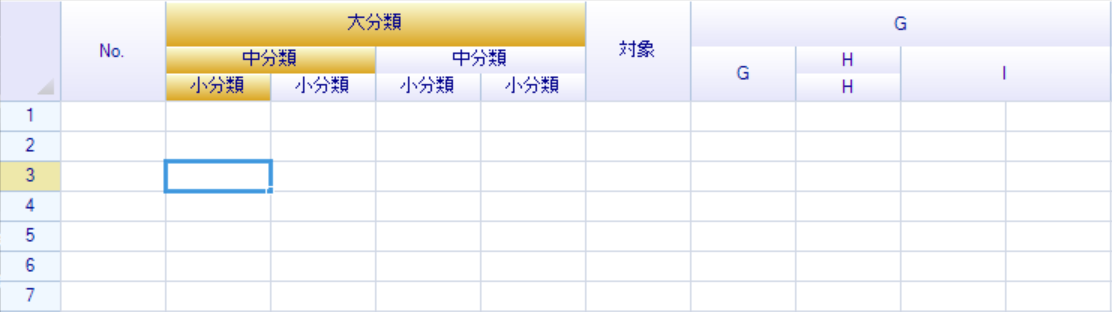
Creating Multi-Row Headers
Access the extension column header via the ExtensionColumnHeader property:
var extensionHeader = worksheet.ExtensionColumnHeader;Set the Number of Header Rows
Use the RowCount property or SetRowCount method to define the number of header rows (1 to 10):
// Set 3 header rows
extensionHeader.SetRowCount(3);

// Or use the property
extensionHeader.RowCount = 3;
The result:
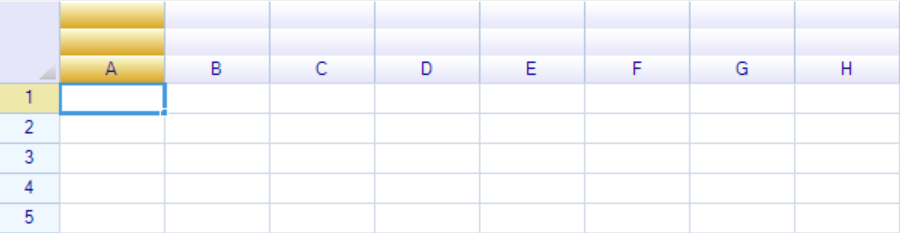
Note: The extension column header supports between 1 and 10 rows. Setting
RowCountto 1 effectively restores the default single-row header.
Get Header Row Count and Total Height
int rowCount = extensionHeader.RowCount;
int totalHeight = extensionHeader.TotalHeight; // Total height in pixels of all header rows
Accessing Header Cells
Cells in multi-row headers use (row, column) coordinates with the origin (0, 0) at the top-left corner:
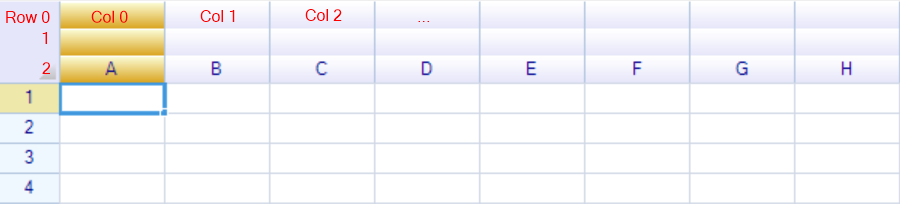
// Access a cell by row and column index
HeaderCell cell = extensionHeader[0, 0];

// Or via the Cells collection
HeaderCell cell2 = extensionHeader.Cells[1, 3];
HeaderCell Properties
| Property | Type | Description |
|---|---|---|
Text | string | Display text of the header cell |
Style | HeaderCellStyle | Style object for customizing appearance |
Body | IHeaderBody | Custom header body for rendering |
RowIndex | int | Row index of the cell (read-only) |
ColumnIndex | int | Column index of the cell (read-only) |
IsValid | bool | Whether the cell is valid (not consumed by a merge) |
IsMerged | bool | Whether the cell is part of a merged range |
IsMergedStartCell | bool | Whether this is the top-left cell of a merged range |
MergedStartCell | HeaderCell | The top-left cell of the merge (returns self if not merged) |
CellPosition | CellPosition | Position as a CellPosition struct |
RangePosition | RangePosition | Range if this cell is part of a merge |
PositionAddress | string | Address string (e.g., “A1” or “A1:B2” if merged) |
TextColor | SolidColor? | Text color (deprecated — use Style.TextColor) |
BackColor | SolidColor? | Background color (deprecated — use Style.BackColor) |
Merging and Unmerging Cells
Merge Cells
Use MergeCells to combine cells. Parameters are: start row, start column, row span, column span.
extensionHeader.MergeCells(int startRow, int startColumn, int rowSpan, int columnSpan);Example:
// Merge cell (0,0) spanning 3 rows and 1 column
extensionHeader.MergeCells(0, 0, 3, 1);

// Merge from cell (0,1) spanning 1 row and 4 columns
extensionHeader.MergeCells(0, 1, 1, 4);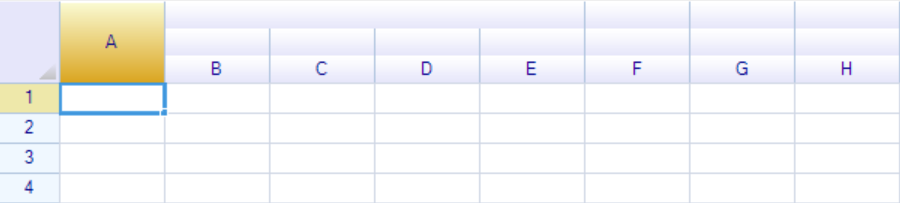
Set Cell Text
extensionHeader[0, 0].Text = "No.";
extensionHeader[0, 1].Text = "Category A";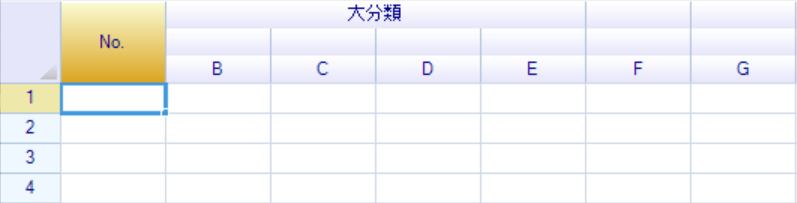
Complete Multi-Row Header Example
Here is a complete example creating a complex hierarchical header:
// Set 3 rows
extensionHeader.SetRowCount(3);

// Merge cells to create the hierarchy
extensionHeader.MergeCells(0, 0, 3, 1);     // "No." spans all 3 rows

extensionHeader.MergeCells(0, 1, 1, 4);     // Top-level group 1
extensionHeader.MergeCells(1, 1, 1, 2);     // Mid-level group 1a
extensionHeader.MergeCells(1, 3, 1, 2);     // Mid-level group 1b

extensionHeader.MergeCells(0, 5, 3, 1);     // "Target" spans all 3 rows

extensionHeader.MergeCells(0, 6, 1, 4);     // Top-level group 2
extensionHeader.MergeCells(1, 6, 2, 1);     // Mid-level group 2a (spans 2 rows)
extensionHeader.MergeCells(1, 8, 2, 2);     // Mid-level group 2b (spans 2 rows)

// Set text for all cells
extensionHeader[0, 0].Text = "No.";
extensionHeader[0, 1].Text = "Category A";
extensionHeader[1, 1].Text = "Sub-A1";
extensionHeader[1, 3].Text = "Sub-A2";
extensionHeader[2, 1].Text = "Detail 1";
extensionHeader[2, 2].Text = "Detail 2";
extensionHeader[2, 3].Text = "Detail 3";
extensionHeader[2, 4].Text = "Detail 4";
extensionHeader[0, 5].Text = "Target";
extensionHeader[0, 6].Text = "Category B";
Result:

Unmerge Cells
extensionHeader.UnmergeCells(0, 7);Check Merge Status
var cell = extensionHeader[0, 0];

if (cell.IsMerged)
{
    Console.WriteLine($"Cell is merged. Start cell: {cell.MergedStartCell.PositionAddress}");
}

if (cell.IsMergedStartCell)
{
    Console.WriteLine($"This is the start of a merge spanning {cell.RangePosition}");
}

// Check if a cell contains another
bool contains = cell.Contains(extensionHeader[1, 0]);
Header Cell Styling
Each header cell has a Style property of type HeaderCellStyle for customizing its appearance.
HeaderCellStyle Properties
| Property | Type | Default | Description |
|---|---|---|---|
TextColor | SolidColor? | null (system default) | Text color. Set to null to remove. |
BackColor | SolidColor? | null (system default) | Background color. Set to null to remove. |
FontSize | float | 10.5f (WinForms) | Font size |
FontFamily | string | ”Arial” (WinForms) | Font family name (WinForms) |
Font | FontFamily | System default (WPF) | Font family (WPF) |
FontStyle | FontStyles | Regular | Font style (bold, italic) |
FontWeight | FontWeight | System default (WPF) | Font weight (WPF only) |
TextUnderLine | bool | false | Whether text is underlined |
HorizontalAlignment | ReoGridHorAlign | Center | Horizontal text alignment |
VerticalAlignment | ReoGridVerAlign | Middle | Vertical text alignment |
TextWrapMode | TextWrapMode | NoWrap | Text wrapping mode |
Padding | PaddingValue | (empty) | Cell padding |
Example: Style Header Cells
// Set background color for a category header
extensionHeader[0, 1].Style.BackColor = new SolidColor(Color.LightBlue);

// Set font style for a title cell
extensionHeader[0, 0].Style.FontSize = 12;
extensionHeader[0, 0].Style.FontStyle = FontStyles.Bold;
extensionHeader[0, 0].Style.TextColor = new SolidColor(Color.DarkBlue);

// Set text alignment
extensionHeader[0, 0].Style.HorizontalAlignment = ReoGridHorAlign.Center;
extensionHeader[0, 0].Style.VerticalAlignment = ReoGridVerAlign.Middle;

// Enable text wrapping for long header text
extensionHeader[0, 1].Style.TextWrapMode = TextWrapMode.WordBreak;

// Add padding
extensionHeader[0, 0].Style.Padding = new PaddingValue(4, 2, 4, 2);
Reset a Cell Style
extensionHeader[0, 0].Style.Reset();Copy Style Between Cells
extensionHeader[1, 1].Style.CopyFrom(extensionHeader[0, 1].Style);Convert to WorksheetRangeStyle
Convert a HeaderCellStyle to a WorksheetRangeStyle for use with worksheet cells:
WorksheetRangeStyle rangeStyle = extensionHeader[0, 0].Style.ToRangeStyle();Adjusting Row Height
Each header row’s height can be adjusted individually:
// Set height of the first header row
extensionHeader.Rows[0].Height = 40;

// Set height of the second header row
extensionHeader.Rows[1].Height = 25;

// Access row count
int count = extensionHeader.Rows.Count;
Mouse Events
The extension column header provides mouse events for interactive behavior:
// Mouse events on the entire extension header
extensionHeader.MouseDown += (s, e) =>
{
    Console.WriteLine($"Mouse down at row:{e.RowIndex}, col:{e.ColumnIndex}");
};

extensionHeader.MouseMove += (s, e) =>
{
    Console.WriteLine($"Mouse move at row:{e.RowIndex}, col:{e.ColumnIndex}");
};

extensionHeader.MouseUp += (s, e) =>
{
    Console.WriteLine($"Mouse up at row:{e.RowIndex}, col:{e.ColumnIndex}");
};
Header Mouse Event Args
| Property | Type | Description |
|---|---|---|
RowIndex | int | Row index in the extension header (ignores merged cells) |
ColumnIndex | int | Column index in the extension header (ignores merged cells) |
PositionToColumn | int | Mouse position relative to the physical column |
Individual Cell Mouse Events
Each HeaderCell also fires its own mouse events:
var cell = extensionHeader[0, 0];

cell.MouseDown += (s, e) =>
{
    Console.WriteLine($"Clicked header cell: {e.HeaderCell.Text}");
};

cell.MouseUp += (s, e) =>
{
    // Handle mouse up
};

cell.MouseMove += (s, e) =>
{
    // Handle mouse move
};
HeaderCellMouseEventArgs
| Property | Type | Description |
|---|---|---|
HeaderCell | HeaderCell | The header cell that triggered the event |
IsCancelled | bool | Set to true to cancel the event |
Column Selection
Multi-row column headers always allow individual columns to be selected, regardless of whether cells are merged horizontally. Selected columns are displayed in a highlighted color:

If only some columns of a merged cell area are selected, those cells are partially highlighted:

Hiding Columns
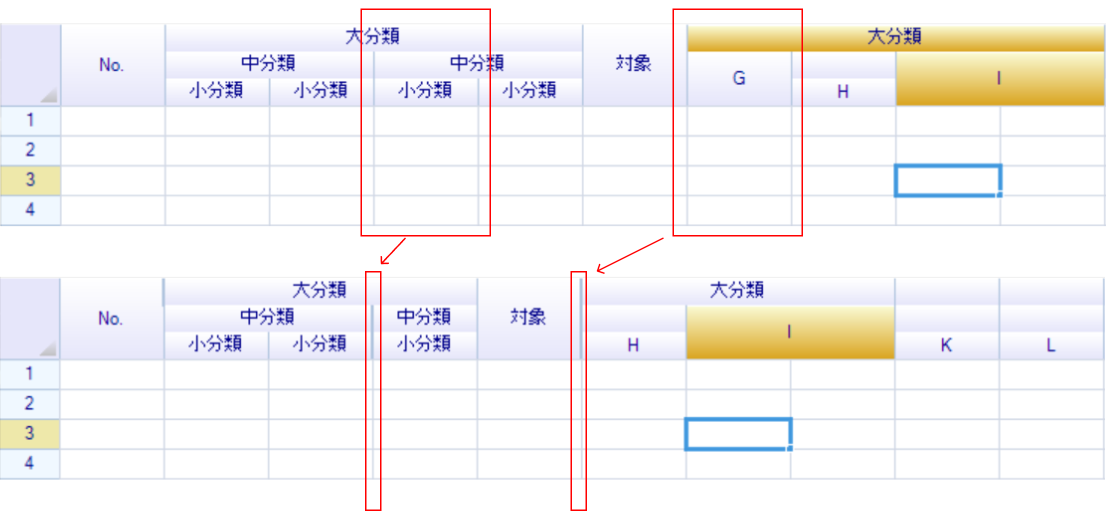
When a column is hidden, a thick line appears in place of the hidden column within the multi-row header:
Use with Freeze Panes
Multi-row column headers work with worksheet freeze just like regular column headers. When the worksheet is scrolled, frozen columns remain visible:

Use with Outlines
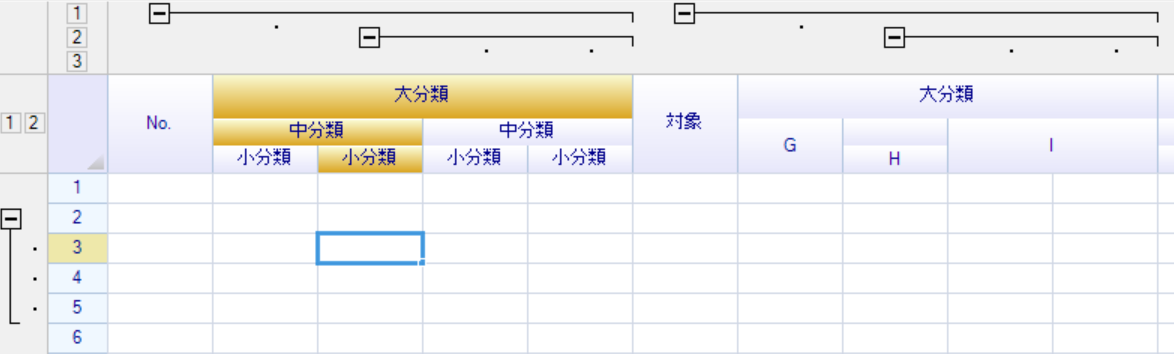
Multi-row column headers work with outlines. If columns are collapsed, the corresponding header cells are hidden:
Reset Extension Header
Reset the extension header to its default state (removes all merges and text):
extensionHeader.Reset();Convert to PartialGrid
Export the extension header as a PartialGrid object:
// Export all columns
var partialGrid = extensionHeader.ConvertToPartialGrid();

// Export only specific columns
var partialGrid = extensionHeader.ConvertToPartialGrid(new int[] { 0, 1, 2, 3 });
Related Topics
- Rows, Columns & Headers — Basic row/column operations and header customization
- Freeze Panes — Freeze rows and columns
- Group & Outline — Group rows/columns with expand/collapse