ReoGrid hides rows by running a filter over a data range. You can use the built‑in column filter UI, rule‑based conditional filters, or your own filter logic wired to any GUI you like.
Filter entry points
Auto filter UI – Excel‑style drop‑downs that collect unique values per column. See Built‑in Auto Filter.
Conditional filters – Rule objects (ConditionalDataFilter + FilterCondition) evaluated against a ColumnBasedDataSource. See Conditional Filters.
Custom filters – Implement RowBasedDataFilter<IRowDataRecord> (or use Func<int, bool>) and call Worksheet.DoFilter(range, filter) yourself.
Minimal examples
Using a predicate
var sheet = grid.CurrentWorksheet;var range = sheet.UsedRange;sheet.DoFilter(range, rowIndex =>{ var value = sheet[rowIndex, 2]; // third column return value is double d && d >= 1000; // keep rows with value >= 1000});
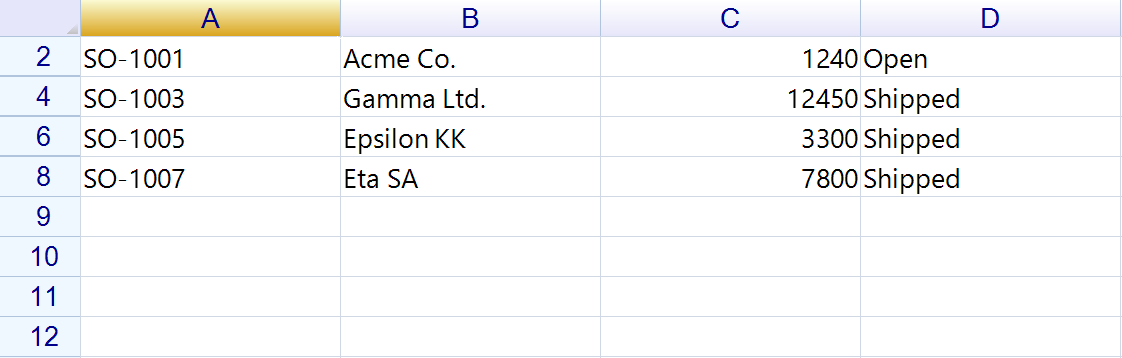
Result — the predicate above over a seven-row table. Rows under 1000 are hidden, which is why the row numbers skip. Note that UsedRange includes the header row, and the header fails the predicate too — start the range at row 2 if you want to keep it visible.
Using a data filter
var condition = new ConditionalDataFilter();condition.Conditions.Add(new FilterCondition("price", ConditionOperator.GreaterThan, 1000));condition.OnApply += (s, e) => sheet.DoFilter("A1:D200", condition);condition.Apply(); // triggers DoFilter
Combining filters
Use MultipleDataFilter when you want several filters to be true at once (for example, conditional rules plus free‑text search):
var condition = new ConditionalDataFilter();var search = new TextSearchDataFilter();var filters = new MultipleDataFilter();filters.Filters.Add(condition);filters.Filters.Add(search);condition.OnApply += (s, e) => sheet.DoFilter("A1:F300", filters);search.OnApply += (s, e) => sheet.DoFilter("A1:F300", filters);
On-screen vs. data-driven filtering
On-screen filter (UI-driven): The built-in auto filter and conditional filters hide rows that already exist on the sheet. They work against the range currently loaded in the worksheet.
Data-driven filter: If your data source supports filtering/querying, filter there first (e.g., database query, in-memory LINQ) and then bind the filtered ColumnBasedDataSource to the sheet. ReoGrid will display only the filtered records, and any additional on-screen filters apply on top of that.
Build your own filter UI
Render controls (panel, list, checkboxes, etc.) wherever you want—often in a header drop‑down.
When the user changes selections, update your filter object(s) and call Apply(); handle OnApply to call Worksheet.DoFilter(range, filter).
For header drop‑downs, derive from DropdownHeaderCell and attach your control as the drop‑down content, then install the header body on the column header.