
ReoGrid includes an Excel-like column filter. It builds a drop-down per column, collects the unique values from that column, and lets users show/hide rows or sort the data.
Create column filters
Use Worksheet.CreateColumnFilter to attach the built-in UI to one or more columns. The filter scans the range you supply (excluding title rows) to build its candidate list.
// put data on the sheet
worksheet["C1:C5"] = new object[] { "A", "B", "C", "D", "E" };

// create a filter on column C, no title rows
var filter = worksheet.CreateColumnFilter("C", "C", titleRows: 0);
Common overloads:
CreateColumnFilter()– cover the current used range.CreateColumnFilter(string startColumn, string endColumn, int titleRows = 0, AutoColumnFilterUI ui = AutoColumnFilterUI.DropdownButtonAndPanel)CreateColumnFilter(RangePosition range, AutoColumnFilterUI ui = AutoColumnFilterUI.DropdownButtonAndPanel)
By default a drop-down button is added on each column header: 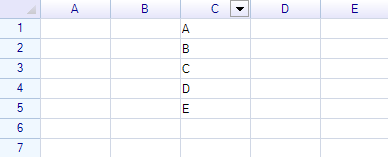
Click it to see the candidate list (collected from DisplayText): 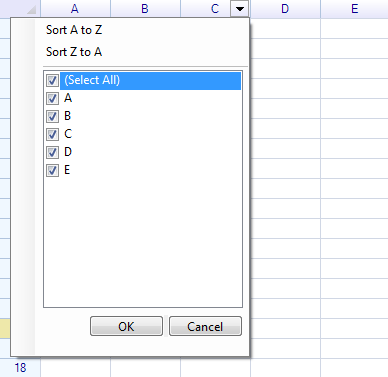
To create the filter without UI, pass AutoColumnFilterUI.NoGUI:
var filter = worksheet.CreateColumnFilter("C", "C", 0, AutoColumnFilterUI.NoGUI);With NoGUI, you control the candidates entirely in code—add or remove SelectedTextItems per column and call Apply() when your conditions change.
WPF: Custom templates
When using the WPF build you can style the built-in UI with DataTemplates:
AutoColumnFilter.FilterButtonTemplate– template for the drop-down button shown on the column header (propagates to eachAutoColumnFilterBody.DropdownButtonTemplate).AutoColumnFilter.FilterPopupItemTemplate– template for each item in the filter popup list (defaults to a checkbox + text). Bind toColumnFilterPopupItemproperties likeTextandIsChecked.DropdownHeaderCell.DropdownButtonTemplate(on a specific column filter body) – per-column override if you need different buttons per column.
Example:
<DataTemplate x:Key="FilterButtonTemplate">
  <Grid Width="16" Height="16">
    <Path Data="M0,0 L8,8 L16,0 Z" Fill="DarkSlateGray"/>
  </Grid>
</DataTemplate>

<DataTemplate x:Key="FilterItemTemplate">
  <StackPanel Orientation="Horizontal" Margin="4,2">
    <CheckBox IsChecked="{Binding IsChecked}" />
    <TextBlock Text="{Binding Text}" Margin="6,0,0,0"/>
  </StackPanel>
</DataTemplate>
var filter = worksheet.CreateColumnFilter("C", "E");
filter.FilterButtonTemplate = (DataTemplate)FindResource("FilterButtonTemplate");
filter.FilterPopupItemTemplate = (DataTemplate)FindResource("FilterItemTemplate");Programmatic filtering
You can control which items are selected in code:
filter.Columns["C"].SelectedTextItems.Clear();
filter.Columns["C"].SelectedTextItems.AddRange(new[] { "A", "C", "D" });
filter.Apply();
Sorting
Use Worksheet.SortColumn to sort a column. The sort moves other columns inside the apply range in sync.
// sort on column "C"
worksheet.SortColumn("C", order: SortOrder.Descending);
You can also limit the area the sort is allowed to move:
worksheet.SortColumn(
    columnIndex: 1,                         // column B (zero-based)
    applyRange: new RangePosition("A1:B5"),
    order: SortOrder.Descending);
Result:
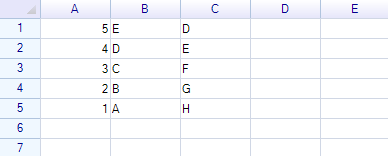
Create filters in ReoGrid Editor
In the Editor app, select the data range (excluding title rows) and choose Sheet → Filter to add drop-down buttons. Example setup:
worksheet["C1:C6"] = new object[] { "Title", "A", "B", "C", "D", "E" };Title rows are excluded from filtering/sorting: 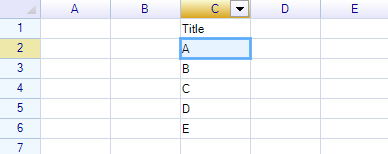
Example sort (Z‑A): 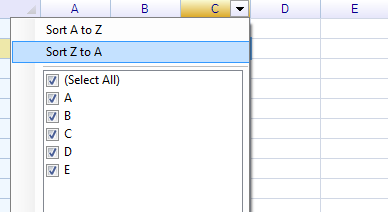
Title rows stay in place: 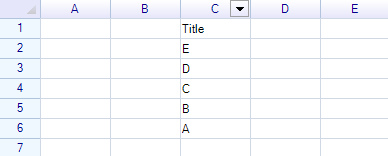
API Reference
AutoColumnFilter
| Member | Type | Description |
|---|---|---|
Worksheet | Worksheet | The attached worksheet |
ApplyRange | RangePosition | The range being filtered |
Columns | FilterColumnCollection | Access column filter bodies by index or column code |
Apply() | void | Re-evaluate filters and hide/show rows |
Attach(Worksheet, AutoColumnFilterUI) | void | Attach the filter to a worksheet |
Detach() | void | Remove the filter from the worksheet |
FilterButtonPressed | event | Raised when a column filter button is clicked |
FilterColumnCollection
| Member | Description |
|---|---|
this[int index] | Get column filter body by zero-based column index |
this[string columnCode] | Get column filter body by column address code (e.g., "C") |
AutoColumnFilterBody
Each column in the filter has an AutoColumnFilterBody with these members:
| Member | Type | Description |
|---|---|---|
ColumnHeader | ColumnHeader | The column header instance |
IsSelectAll | bool | Whether all items are selected (column is unfiltered) |
SelectedTextItems | TextFilterCollection | The set of selected (visible) text values |
GetDistinctItems() | List<string> | Get all unique values in the column |
TextFilterCollection
| Method | Description |
|---|---|
Add(string item) | Add an item to the selected set |
AddRange(IEnumerable<string> items) | Add multiple items |
Remove(string item) | Remove an item |
Clear() | Clear all selected items |
Contains(string item) | Check if an item is selected |
Count | Number of selected items |
this[string item] | Get or set whether an item is selected |
AutoColumnFilterUI Enum
| Value | Description |
|---|---|
NoGUI | No UI elements created |
DropdownButton | Only show dropdown button on header |
DropdownButtonAndPanel | Show dropdown button and built-in filter panel (default) |
FilterButtonPressedEventArgs
| Property | Type | Description |
|---|---|---|
ColumnHeader | ColumnHeader | The column header whose button was pressed |
IsCancelled | bool | Set to true to prevent the built-in popup from opening |
filter.FilterButtonPressed += (s, e) =>
{
    // Show custom filter UI instead of built-in popup
    e.IsCancelled = true;
    ShowCustomFilterDialog(e.ColumnHeader);
};
Related Topics
- Data Filtering — Filter concepts and custom filters
- Conditional Filters — Rule-based filtering