
Floating objects exist independently of the cell grid and can be positioned freely at absolute locations on the worksheet. They include drawing shapes, images, and charts.
Namespace
using unvell.ReoGrid.Drawing;
using unvell.ReoGrid.Drawing.Shapes;
Class Hierarchy
FloatingObject
  └─ DrawingObject
      ├─ ShapeObject
      │   ├─ RectangleShape
      │   ├─ EllipseShape
      │   ├─ RoundedRectangleShape
      │   ├─ DiamondShape
      │   ├─ PieShape
      │   └─ BlockArcShape
      ├─ Line
      ├─ ImageObject
      └─ DrawingComponent
          └─ Chart (ColumnChart, BarChart, LineChart, etc.)
Adding Floating Objects
All floating objects are managed through the FloatingObjects collection on the worksheet:
var sheet = grid.CurrentWorksheet;

// Create a shape
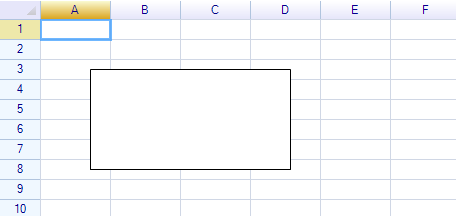
var rect = new RectangleShape
{
    Location = new Graphics.Point(50, 50),
    Size = new Graphics.Size(200, 100),
    Text = "Hello ReoGrid",
};

// Add to worksheet
sheet.FloatingObjects.Add(rect);
Result:
FloatingObjects Collection
| Method | Description |
|---|---|
Add(object) | Add a floating object to the worksheet |
AddRange(objects) | Add multiple floating objects at once |
Remove(object) | Remove a specific floating object |
Clear() | Remove all floating objects |
Contains(object) | Check if an object is in the collection |
Count | Number of floating objects (read-only) |
this[int index] | Access by index |
// Remove a specific shape
sheet.FloatingObjects.Remove(rect);

// Remove all floating objects
sheet.FloatingObjects.Clear();

// Iterate all floating objects
foreach (var obj in sheet.FloatingObjects)
{
    Console.WriteLine($"{obj.GetType().Name}: {obj.Bounds}");
}

// Count floating objects
int count = sheet.FloatingObjects.Count;
Common Properties (All Floating Objects)
All floating objects share these positioning and sizing properties:
| Property | Type | Description |
|---|---|---|
Location | Graphics.Point | Top-left position on the worksheet |
Size | Graphics.Size | Width and height |
Bounds | Graphics.Rectangle | Position and size combined |
X | RGFloat | X coordinate |
Y | RGFloat | Y coordinate |
Width | RGFloat | Width |
Height | RGFloat | Height |
Left | RGFloat | Left edge (read-only) |
Right | RGFloat | Right edge (read-only) |
Top | RGFloat | Top edge (read-only) |
Bottom | RGFloat | Bottom edge (read-only) |
// Position
rect.Location = new Graphics.Point(100, 200);

// Size
rect.Size = new Graphics.Size(300, 150);

// Both at once
rect.Bounds = new Graphics.Rectangle(100, 200, 300, 150);

// Individual properties
rect.X = 100;
rect.Width = 300;
DrawingObject Properties
Drawing objects add visual styling and transformation properties:
| Property | Type | Description |
|---|---|---|
Visible | bool | Whether the object is visible |
RotateAngle | RGFloat | Rotation angle in degrees |
ScaleX | RGFloat | Horizontal scale factor |
ScaleY | RGFloat | Vertical scale factor |
Style | IDrawingObjectStyle | Style for fill, line, and text |
ClientBounds | Rectangle | Bounds within the object (read-only) |
rect.RotateAngle = 45f;
rect.Visible = false;
Styling
Access the Style property to customize appearance:
IDrawingObjectStyle Properties
| Property | Type | Description |
|---|---|---|
FillColor | IColor | Background fill color |
LineColor | SolidColor | Outline color |
LineWidth | RGFloat | Outline width |
LineStyle | LineStyles | Outline style |
rect.Style.FillColor = Graphics.SolidColor.LightYellow;
rect.Style.LineColor = Graphics.SolidColor.Navy;
rect.Style.LineWidth = 2.0f;
rect.Style.LineStyle = Graphics.LineStyles.Dash;
LineStyles Enum
| Value | Description |
|---|---|
Solid | Solid line (default) |
Dash | Dashed line |
Dot | Dotted line |
DashDot | Dash-dot line |
DashDotDot | Dash-dot-dot line |
Shape Text Styling
Shapes (Rectangle, Ellipse, Diamond, etc.) support text via IDrawingShapeObjectStyle:
| Property | Type | Description |
|---|---|---|
TextColor | SolidColor | Text color |
HorizontalAlignment | HorizontalAlignment | Text horizontal alignment |
VerticalAlignment | VerticalAlignment | Text vertical alignment |
rect.Text = "Styled Shape";
rect.Style.TextColor = Graphics.SolidColor.DarkBlue;
rect.Style.HorizontalAlignment = Drawing.HorizontalAlignment.Center;
rect.Style.VerticalAlignment = Drawing.VerticalAlignment.Middle;
Line Cap Styling
Line objects support cap styles via IDrawingLineObjectStyle:
| Property | Type | Description |
|---|---|---|
StartCap | LineCapStyles | Cap at the start point |
EndCap | LineCapStyles | Cap at the end point |
LineCapStyles Enum
| Value | Description |
|---|---|
None | No cap (default) |
Arrow | Arrow head |
Ellipse | Ellipse cap |
Round | Round cap |
Events
FloatingObject Events
| Event | Description |
|---|---|
MouseDown | Mouse button pressed on the object |
Selection Events
| Event | Description |
|---|---|
SelectionChanged | Object selection state changed |
rect.SelectionChanged += (s, e) =>
{
    Console.WriteLine($"Selected: {rect.IsSelected}");
};
Object Types
Drawing Shapes
Shapes with fill, outline, and text support. See Drawing Shapes for all shape types and their properties.
Floating Image
Display images on the worksheet. See Floating Image.
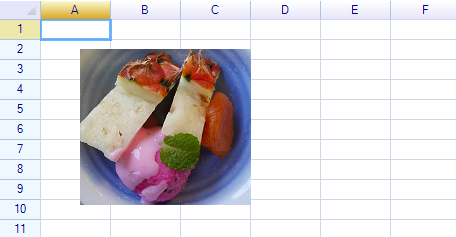
var image = Image.FromFile("photo.png");
var imgObj = new ImageObject(image)
{
    Location = new Graphics.Point(40, 30),
};
sheet.FloatingObjects.Add(imgObj);
Charts
Charts are also floating objects. See Chart for all chart types.
Interface Hierarchy
| Interface | Extends | Description |
|---|---|---|
IFloatingObject | — | Base: position, size, bounds |
IDrawingObject | IFloatingObject | Adds: style, rotation, scale, container |
IDrawingContainer | IDrawingObject | Adds: children collection, clip bounds |
Related Topics
- Drawing Shapes — All shape types and styling
- Floating Image — Adding images to worksheets
- Chart — Chart types and data sources