
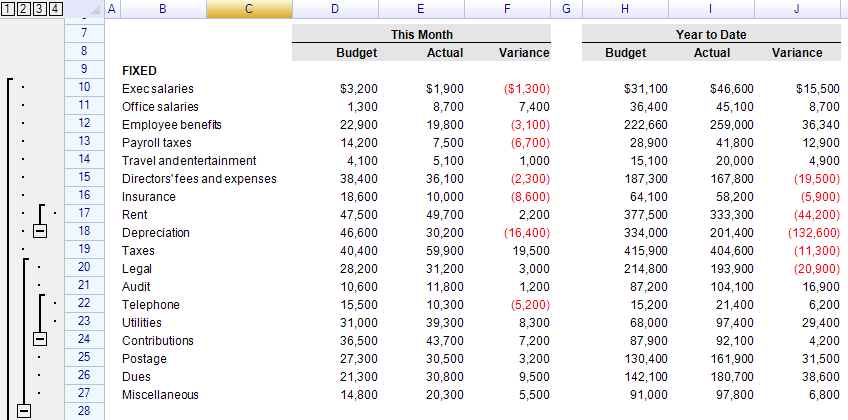
ReoGrid supports row and column outlining (grouping), allowing you to collapse and expand sections of the worksheet. This is useful for organizing hierarchical data, creating collapsible sections, and building summary views.
Adding Outlines
Group Rows or Columns
// Group 5 rows starting at row 3
sheet.GroupRows(3, 5);

// Group 2 columns starting at column 5
sheet.GroupColumns(5, 2);

// Generic method using RowOrColumn flag
sheet.AddOutline(RowOrColumn.Row, 3, 5);
sheet.AddOutline(RowOrColumn.Column, 5, 2);
The AddOutline and GroupRows/GroupColumns methods return the created outline instance:
var outline = sheet.GroupRows(3, 5);Nested Outlines
Outlines can be nested up to 10 levels deep. Each level appears as a separate group in the outline panel:
// Level 1: Group rows 2–8
sheet.GroupRows(2, 7);

// Level 2: Sub-group rows 3–5
sheet.GroupRows(3, 3);
Exceptions
AddOutline may throw the following exceptions:
| Exception | Description |
|---|---|
OutlineIntersectedException | The outline overlaps with an existing outline at the same level |
OutlineAlreadyDefinedException | An identical outline already exists |
OutlineTooMuchException | Maximum 10 outline levels reached |
OutlineOutOfRangeException | Position is outside the worksheet range (the last row/column cannot be included) |
Collapse and Expand
Via Outline Instance
var outline = sheet.GroupRows(3, 5);

outline.Collapse();   // Collapse (hide grouped rows)
outline.Expand();     // Expand (show grouped rows)

// Check state
bool isCollapsed = outline.Collapsed;
Via Worksheet Methods
Specify the outline by its start position and count:
sheet.CollapseOutline(RowOrColumn.Row, 3, 5);
sheet.ExpandOutline(RowOrColumn.Row, 3, 5);
These methods return the outline instance, or throw OutlineNotFoundException if no outline matches.
Collapse/Expand All in a Group Level
// Get a specific outline group level (zero-based)
var group = sheet.GetOutlineGroup(RowOrColumn.Row, 0);  // Level 0

group.CollapseAll();
group.ExpandAll();
Removing Outlines
Remove a Specific Outline
// By position and count
sheet.RemoveOutline(RowOrColumn.Row, 3, 5);

// By instance
sheet.RemoveOutline(outline);

// Using shorthand methods
sheet.UngroupRows(3, 5);
sheet.UngroupColumns(5, 2);
Remove All Outlines
// Remove all row outlines
sheet.UngroupAllRows();

// Remove all column outlines
sheet.UngroupAllColumns();
Accessing Outlines
Get a Specific Outline
var outline = sheet.GetOutline(RowOrColumn.Row, 3, 5);
if (outline != null)
{
    Console.WriteLine($"Outline: {outline.Start} to {outline.End}, collapsed: {outline.Collapsed}");
}
Access Outline Collections
// Get row outline collection
var rowOutlines = sheet.RowOutlines;

// Get column outline collection
var colOutlines = sheet.ColumnOutlines;

// Get outline collection by flag
var outlines = sheet.GetOutlines(RowOrColumn.Row);

// Get number of outline group levels
int levels = sheet.GetOutlineGroupCount(RowOrColumn.Row);
Iterate All Outlines
sheet.IterateOutlines(RowOrColumn.Row, (group, outline) =>
{
    Console.WriteLine($"Outline: rows {outline.Start}–{outline.End}, collapsed: {outline.Collapsed}");
    return true; // continue iteration
});
Outline Properties
IOutline / BaseOutline Properties
| Property | Type | Description |
|---|---|---|
Start | int | Starting row/column index |
Count | int | Number of rows/columns in the outline |
End | int | End index (Start + Count) |
Collapsed | bool | Whether the outline is collapsed |
Worksheet | Worksheet | Parent worksheet |
IsVisibleToUser | bool | Whether the outline is visible to the user |
GroupRowIndex | int | Index of the group summary row |
RowOutline Specific Properties
| Property | Type | Description |
|---|---|---|
Row | int | Starting row index (same as Start) |
Rows | int | Number of rows (same as Count) |
EndRow | int | End row index |
ColumnOutline Specific Properties
| Property | Type | Description |
|---|---|---|
Col | int | Starting column index (same as Start) |
Cols | int | Number of columns (same as Count) |
EndCol | int | End column index |
Outline Button Location
Control whether the expand/collapse button appears above or below the grouped rows:
// Button at the bottom (default)
sheet.OutlineButtonLocation = OutlineButtonLocation.Bottom;

// Button at the top
sheet.OutlineButtonLocation = OutlineButtonLocation.Top;
Group Row Style
Customize the appearance of the summary row for each outline:
// Get the group row style for a specific row
var style = sheet.GetGroupRowStyle(3);

// Try to get the group row style (returns false if not found)
if (sheet.TryGetGroupRowStyle(3, out var groupStyle))
{
    // Use groupStyle
}

// Get the group row border style
var borderStyle = sheet.GetGroupRowBorderStyle(3);
borderStyle.Style = BorderLineStyle.Solid;
borderStyle.Color = new SolidColor(Color.Gray);
You can also access the style directly from an outline instance:
var outline = sheet.GroupRows(3, 5);

// Set group row style
outline.GroupRowStyle.Flag = PlainStyleFlag.FillColor;
outline.GroupRowStyle.BackColor = Color.LightYellow;

// Set group row border style
outline.GroupRowBorderStyle.Style = BorderLineStyle.Dashed;
outline.GroupRowBorderStyle.Color = new SolidColor(Color.LightGray);
Auto Collapse and Expand
If an expanded outline has its final row hidden or height set to zero, the outline collapses automatically. If any rows within a collapsed outline become visible, the outline expands automatically. This behavior cannot be disabled, but collapse/expand events are still fired.
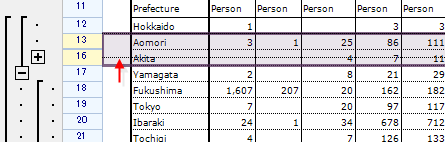
After adjusting row heights:
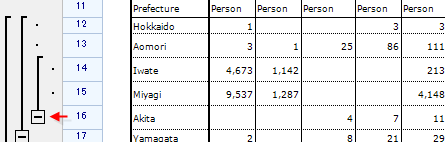
Auto Remove
If all rows or columns within an outline are deleted, the outline is automatically removed. The OutlineRemoved event fires in this case.
Events
Worksheet-Level Events
| Event | Event Args | Description |
|---|---|---|
OutlineAdded | OutlineAddedEventArgs | An outline was added |
OutlineRemoved | OutlineRemovedEventArgs | An outline was removed |
BeforeOutlineCollapse | BeforeOutlineCollapseEventArgs | Before an outline is collapsed (cancellable) |
AfterOutlineCollapse | AfterOutlineCollapseEventArgs | After an outline is collapsed |
BeforeOutlineExpand | BeforeOutlineExpandingEventArgs | Before an outline is expanded (cancellable) |
AfterOutlineExpand | AfterOutlineExpandingEventArgs | After an outline is expanded |
Event Args Properties
All event args inherit from OutlineEventArgs:
Outline(IOutline) — The outline that triggered the event
BeforeOutlineCollapseEventArgs and BeforeOutlineExpandingEventArgs add:
IsCancelled(bool) — Set totrueto prevent the operation
Worksheet Event Examples
sheet.OutlineAdded += (s, e) =>
{
    Console.WriteLine($"Outline added: {e.Outline.Start} to {e.Outline.End}");
};

sheet.OutlineRemoved += (s, e) =>
{
    Console.WriteLine($"Outline removed: {e.Outline.Start} to {e.Outline.End}");
};

sheet.BeforeOutlineCollapse += (s, e) =>
{
    Console.WriteLine("Before collapse");
    // e.IsCancelled = true;  // Prevent collapse
};

sheet.AfterOutlineCollapse += (s, e) =>
{
    Console.WriteLine("After collapse");
};

sheet.BeforeOutlineExpand += (s, e) =>
{
    Console.WriteLine("Before expand");
};

sheet.AfterOutlineExpand += (s, e) =>
{
    Console.WriteLine("After expand");
};
Outline Instance Events
Each outline instance also fires its own events:
var outline = sheet.GroupRows(3, 5);

outline.BeforeCollapse += (s, e) =>
{
    Console.WriteLine("Instance: before collapse");
    // e.IsCancelled = true;
};

outline.AfterCollapse += (s, e) =>
{
    Console.WriteLine("Instance: after collapse");
};

outline.BeforeExpand += (s, e) =>
{
    Console.WriteLine("Instance: before expand");
};

outline.AfterExpand += (s, e) =>
{
    Console.WriteLine("Instance: after expand");
};
Preventing Collapse/Expand
Use the IsCancelled property on before-events:
sheet.BeforeOutlineCollapse += (s, e) => e.IsCancelled = true;Hide Outline Panel
Hide the outline UI to prevent user interaction, while still allowing programmatic control:
// Hide both row and column outline panels
sheet.SetSettings(WorksheetSettings.View_AllowShowRowOutlines, false);
sheet.SetSettings(WorksheetSettings.View_AllowShowColumnOutlines, false);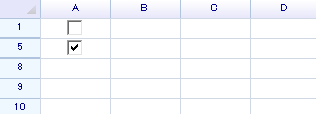
Outlines can still be controlled programmatically when the panel is hidden:
var outline1 = sheet.GroupRows(1, 3);
outline1.Collapse();

var outline2 = sheet.GroupRows(5, 2);
outline2.Collapse();
Show the outline panel again:
sheet.SetSettings(WorksheetSettings.View_AllowShowRowOutlines, true);
sheet.SetSettings(WorksheetSettings.View_AllowShowColumnOutlines, true);
Using Actions (Undo/Redo Support)
Outline operations can be performed through actions for undo/redo support:
// Add outline with undo support
sheet.DoAction(new AddOutlineAction(RowOrColumn.Row, 3, 5));

// Remove outline with undo support
sheet.DoAction(new RemoveOutlineAction(RowOrColumn.Row, 3, 5));

// Collapse/expand with undo support
sheet.DoAction(new CollapseOutlineAction(RowOrColumn.Row, 3, 5));
sheet.DoAction(new ExpandOutlineAction(RowOrColumn.Row, 3, 5));
Related Topics
- Rows, Columns & Headers — Row/column operations and hide/show
- Freeze Panes — Freeze rows and columns
- Events — All worksheet events
- Action Framework — Undo/redo support