
To merge a range, use one of the two methods below:
// get current active worksheet
var worksheet = reoGridControl1.CurrentWorksheet;

// way 1: call method of worksheet
worksheet.MergeRange("B3:E5");

// way 2: merge via range instance
var range = worksheet.Ranges["B3:E5"];
range.Merge();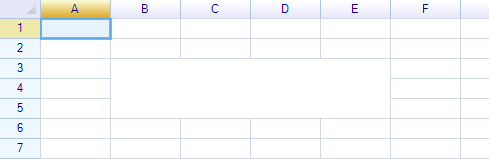
To unmerge a range:
worksheet.UnmergeRange("B3:E5");

// or:
var range = worksheet.Ranges["B3:E5"];
range.Unmerge();
Undo & Redo & Repeat
Merge and Unmerge operations can be performed using actions, which allows the operations to be undone.
To merge a range using an action:
worksheet.DoAction(new MergeRangeAction("B3:E5"));To unmerge a range using an action:
worksheet.DoAction(new UnmergeRangeAction("B3:E5"));Run Script
When using the extended edition, script execution is available. To merge and unmerge via script:
var sheet = workbook.CurrentWorksheet;

sheet.mergeRange(new Range("B3:E5"));
sheet.unmergeRange(new Range("B3:E5"));
Example: Merge or unmerge the currently selected range
var sheet = workbook.CurrentWorksheet;

sheet.mergeRange(grid.selection);
sheet.unmergeRange(grid.selection);
Remark
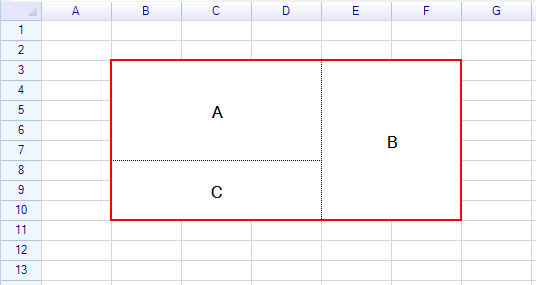
The UnmergeRange method finds and unmerges all merged cells within the specified range. For example, merged cells A, B, and C below will all be unmerged if the red range is passed as the argument.
Merged Cells
Check for merged cell
Only the top-left cell of a merged range is the merged cell. All other cells merged into the range become invalid.
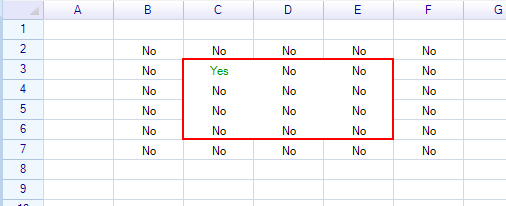
To check whether a cell is a merged cell, use the IsMergedCell method of the worksheet:
bool isMergedCell = worksheet.IsMergedCell(2, 1);      // false
bool isMergedCell = worksheet.IsMergedCell(2, 2);      // true
bool isMergedCell = worksheet.IsMergedCell(2, 3);      // false
Rowspan & Colspan
A merged cell has two properties, RowSpan and ColSpan, which determine how many cells are merged in each direction:
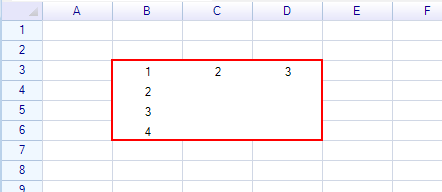
The B3 cell is a merged cell with a rowspan of 4 and a colspan of 3.
To get the rowspan and colspan from a cell instance:
var rowspan = cell.GetRowspan();   // number of rowspan
var colspan = cell.GetColspan();   // number of colspan
The IsMergedCell property is used to check whether a cell is a merged cell:
var cell = worksheet.Cells["B3"];
bool isMergedCell = cell.IsMergedCell;  // true
Find out merged cell from a range
ReoGrid provides a method called GetMergedCellOfRange to find the merged cell within a specified range.
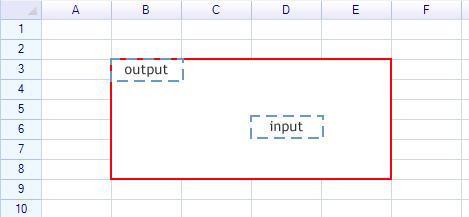
ReoGridCell output = worksheet.GetMergedCellOfRange(input);Valid and invalid cells
Cells absorbed by a merge become invalid. An invalid cell cannot display data or styles. In the example below, the red range is a merged cell. Except for the first cell, all other cells labeled No are invalid — they cannot be selected or edited.
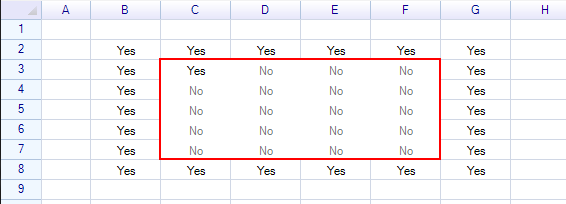
The worksheet provides a method named IsValidCell to check whether a cell is valid:
sheet.IsValidCell(2, 2);      // true
sheet.IsValidCell(2, 3);      // false
Check for whole merged cell
There is a method to check and retrieve the full merged cell range when only part of it is given.
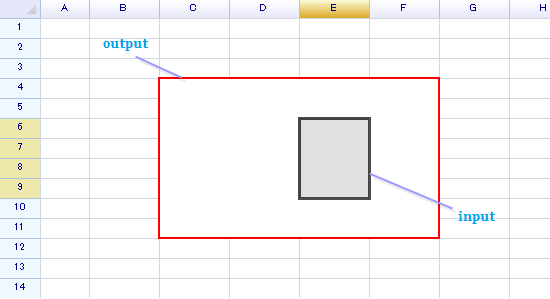
RangePosition outputRange = sheet.CheckMergedRange(inputRange);RangeIntersectionException
A range to be merged may intersect with other merged cells. Attempting to merge an intersecting range will throw a RangeIntersectionException.
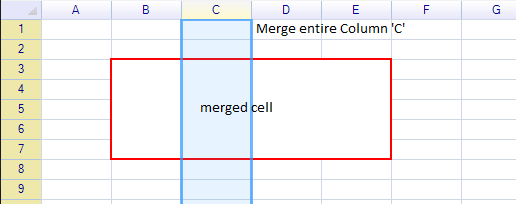
User code should handle this exception and cancel the user operation.
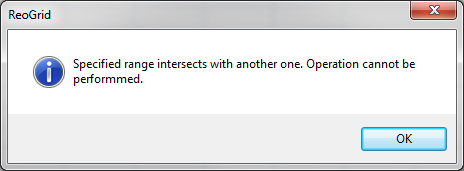
The CheckIntersectedMergingRange method checks whether any part of a merged cell is contained within the specified range. This method is useful for avoiding the exception above.
RangePosition outputRange = sheet.CheckIntersectedMergingRange(inputRange);If outputRange.IsEmpty is true, the inputRange is safe to merge. There is another method that performs the same check:
bool rs = sheet.HasIntersectedMergingRange(inputRange);