Rich format text is represented by the class:
unvell.ReoGrid.Drawing.RichTextRich format text can be displayed and printed when added to cells or floating objects.
Display rich format text in cells
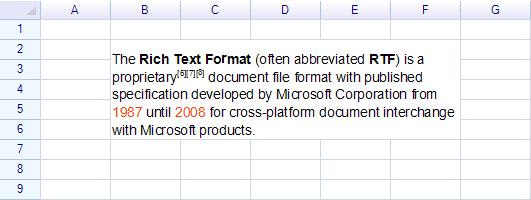
Code for the above example:
var sheet = grid.CurrentWorksheet;

sheet.MergeRange("B2:F6");

sheet["B2"] = new Drawing.RichText()
  .Regular("The ")
  .Bold("Rich Text Format")
  .Regular(" (often abbreviated ")
  .Bold("RTF")
  .Regular(") is a proprietary")
  .Superscript("[6][7][8]")
  .Regular(" document file format with published specification developed by Microsoft Corporation from ")
  .Span("1987", textColor: Color.OrangeRed)
  .Span(" until ", textColor: Color.Black)
  .Span("2008", textColor: Color.OrangeRed)
  .Span(" for cross-platform document interchange with Microsoft products.", textColor: Color.Black);
Line breaks
Set the cell style to enable word-break or break-all wrapping.
Example: Text without word break
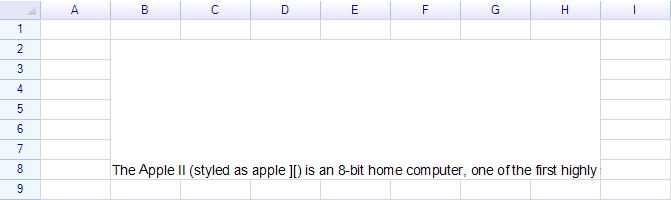
Example: Text with word break
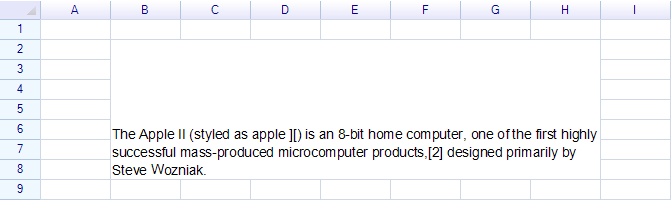
Code:
sheet.Cells["B2"].Style.TextWrap = TextWrapMode.WordBreak;Text alignment
Set the cell horizontal and vertical alignment styles to change rich text alignment.
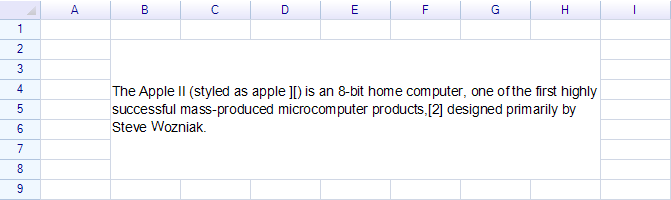
Code:
sheet.Cells["B2"].Style.VAlign = ReoGridVerAlign.Middle;Set text alignment to right:
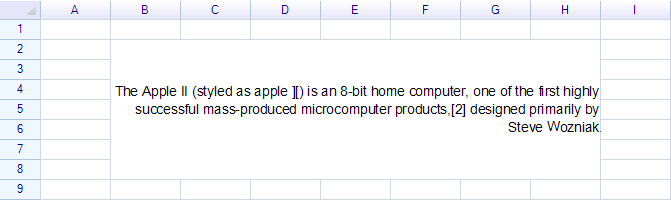
Code:
sheet.Cells["B2"].Style.HAlign = ReoGridHorAlign.Right;ReoGrid rich text structure
A simple text example
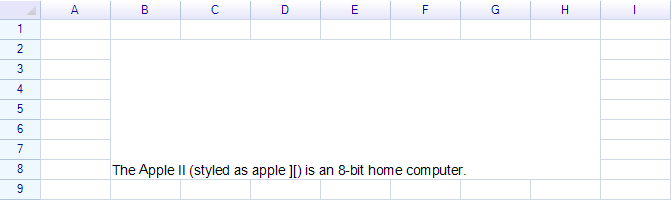
Use the Span method to add text without any styles specified. For example:
sheet["B2"] = new Drawing.RichText()
  .Span("The Apple II (styled as apple ][) is an 8-bit home computer.");
The fastest way to change text styles is to use the Bold, Italic, Regular, and similar methods.
Bold
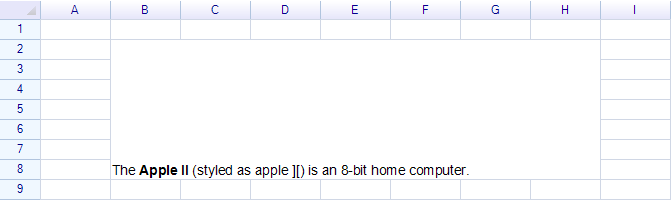
Code:
sheet["B2"] = new Drawing.RichText()
  .Span("The ")
  .Bold("Apple II")
  .Regular(" (styled as apple ][) is an 8-bit home computer.");
Use the Bold method to make text bold, and use the Regular method to restore the default text styles.
The usage of italic, underline, and strikeout styles is the same as bold.
Add paragraph (line break)
To insert a line break, use the NewLine method.
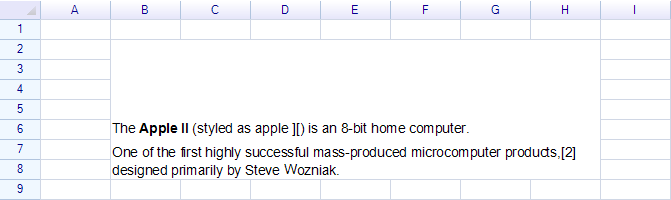
Code:
sheet["B2"] = new Drawing.RichText()
  .Span("The ")
  .Bold("Apple II")
  .Regular(" (styled as apple ][) is an 8-bit home computer.")
  .NewLine()
  .Span("One of the first highly successful mass-produced microcomputer products,[2] designed primarily by Steve Wozniak.");
Paragraph Spacing and Line Height
The NewLine method adds a new paragraph to the rich text.
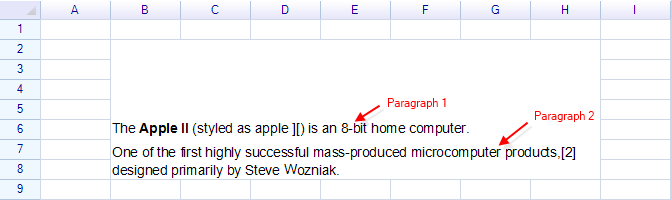
It is possible to change the paragraph spacing and line height:
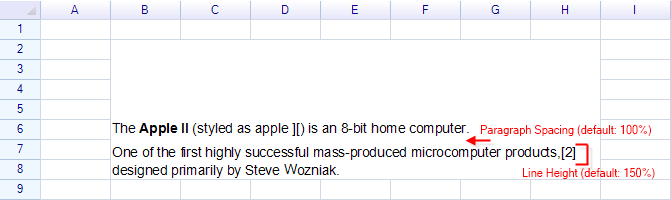
Use the SetStyles method to change the current styles of a paragraph or span.
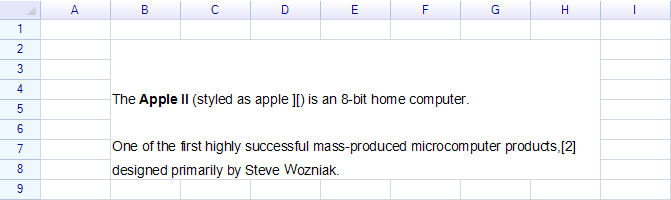
Code:
sheet["B2"] = new Drawing.RichText()
  .SetStyles(paragraphSpacing: 3.0f)
  .Span("The ")
  .Bold("Apple II")
  .Regular(" (styled as apple ][) is an 8-bit home computer.")
  .NewLine()
  .SetStyles(lineHeight: 2.0f)
  .Span("One of the first highly successful mass-produced microcomputer products,[2] designed primarily by Steve Wozniak.");
The SetStyles method changes the current paragraph or span styles. The first SetStyles call changes the paragraph spacing for the first paragraph. After NewLine is called, the second SetStyles call changes the line height for the second paragraph.
Note: Excel does not support adjusting paragraph spacing and line height styles.
Horizontal alignment per paragraph
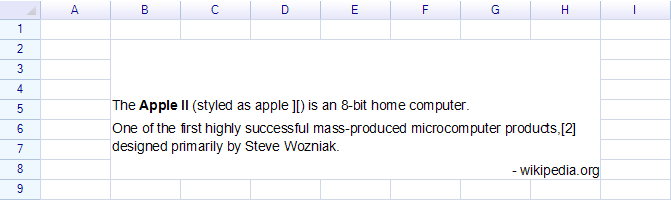
Code:
sheet["B2"] = new Drawing.RichText()
  .Span("The ")
  .Bold("Apple II")
  .Regular(" (styled as apple ][) is an 8-bit home computer.")
  .NewLine()
  .Span("One of the first highly successful mass-produced microcomputer products,[2] designed primarily by Steve Wozniak.")
  .NewLine()
  .SetStyles(halign: ReoGridHorAlign.Right)
  .Span("- wikipedia.org");
Note: Excel does not support alignment styles per paragraph (line).
Superscript and Subscript
To create a superscript, use the Superscript method.
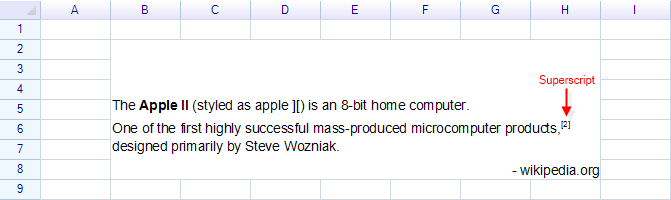
Code:
sheet["B2"] = new Drawing.RichText()
  .Span("The ")
  .Bold("Apple II")
  .Regular(" (styled as apple ][) is an 8-bit home computer.")
  .NewLine()
  .Span("One of the first highly successful mass-produced microcomputer products,")
  .Superscript("[2]")
  .Regular(" designed primarily by Steve Wozniak.")
  .NewLine()
  .SetStyles(halign: ReoGridHorAlign.Right)
  .Span("- wikipedia.org");
Note: After using the
Superscriptmethod, use theRegularmethod to restore the default text styles.
Display rich format text in drawing objects
To display rich format text in drawing objects, create an instance of the RichText class, append text to it, and then assign it to the drawing object.
Excel Import/Export Support
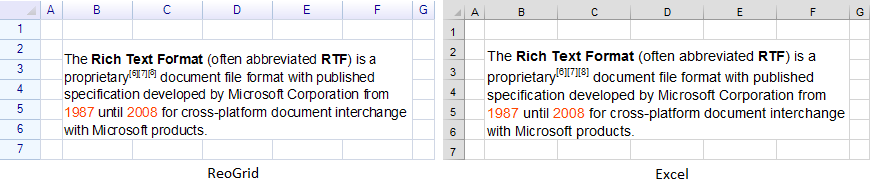
ReoGrid supports importing and exporting rich format text from and to Excel files. The example below shows text displayed in both ReoGrid and Excel.