
ReoGrid supports floating images displayed on a worksheet. It is possible to load and save images from Excel files, as well as display images on a worksheet.
Add an image to a worksheet
// Get a worksheet instance
var worksheet = reoGridControl.Worksheets[0];

// Create a Windows Forms image from a file
var image = Image.FromFile("Sample.png");

// Create a floating image object
var imageObject = new Drawing.ImageObject(image)
{
  // Set the image location on the worksheet
  Location = new Graphics.Point(40, 30),
};

// Add the floating image object to the worksheet
worksheet.FloatingObjects.Add(imageObject);
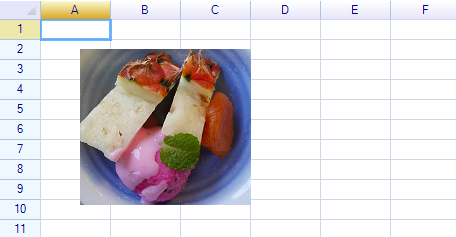
Result:
Get an image from a worksheet
Iterate over all floating objects and check whether a floating object is an image object:
foreach (var floatingObject in worksheet.FloatingObjects)
{
  // check whether or not the floating object is an image
  if (floatingObject is Drawing.ImageObject)
  {
    var imageObject = (Drawing.ImageObject)floatingObject;
    ...
  }
}
Get and set image location and size
The Location property sets the location of the image on the worksheet.
imageObject.Location = new Graphics.Point(40, 30);The Size property of a floating image is used to get and set its size.
When a floating image is first created, the Size reflects the actual size of the image. To change the size, use the following code:
imageObject.Size = new Graphics.Size(200, 100);It is possible to set both location and size at the same time:
imageObject.Bounds = new Graphics.Rectangle(200, 100, 80, 60);Excel Support
When a worksheet contains floating images, they will be loaded from and saved to Excel files automatically.
About Floating Objects
Drawing shapes, images, and Charts are floating objects on a worksheet. To add and remove floating objects, use the Worksheet.FloatingObjects collection property.
Learn more about Floating Objects.