
Sheet Tab User Interface
ReoGrid features a built-in sheet tab user interface control, allowing end-users to switch between active worksheets seamlessly.

Scroll the sheet tab control
If there are too many worksheets to display in the Sheet Tab Control at once, the user can scroll through the Sheet Tab Control to access worksheets that are not currently visible.

Hide sheet tab control
To hide the sheet tab control, set WorkbookSettings.View_ShowSheetTabControl to false:
grid.SetSettings(unvell.ReoGrid.WorkbookSettings.View_ShowSheetTabControl, false);Set width of tab control
Use the SheetTabControlWidth property of the control to change the width of the sheet tab control:
grid.SheetTabControlWidth = 200;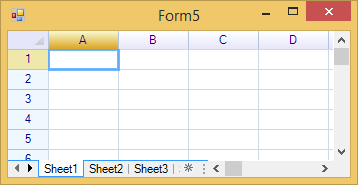
Change background color and text color for sheet tab
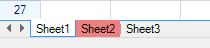
To change the background color and text color, use the NameBackColor and NameTextColor properties of the worksheet:
grid.Worksheets[1].NameBackColor = Color.LightCoral;Result:
Hide new worksheet button
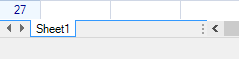
To hide the new sheet button, set the SheetTabNewButtonVisible property to false:
grid.SheetTabNewButtonVisible = false;Result:
Sheet tab context strip menu
Right-clicking on the sheet tab displays a context strip menu:
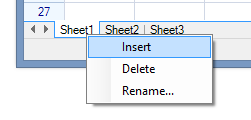
To set the context strip menu:
grid.SheetTabContextMenuStrip = myContextStripMenu;To prevent the built-in popup menu, set the property to an empty menu strip:
grid.SheetTabContextMenuStrip = new ContextMenuStrip();Change the context strip menu language
Change the text on the context menu by setting the properties of the LanguageResource class:
LanguageResource.Menu_InsertSheet = "Insert";