
Selection state belongs to the view. A Worksheet knows nothing about it.
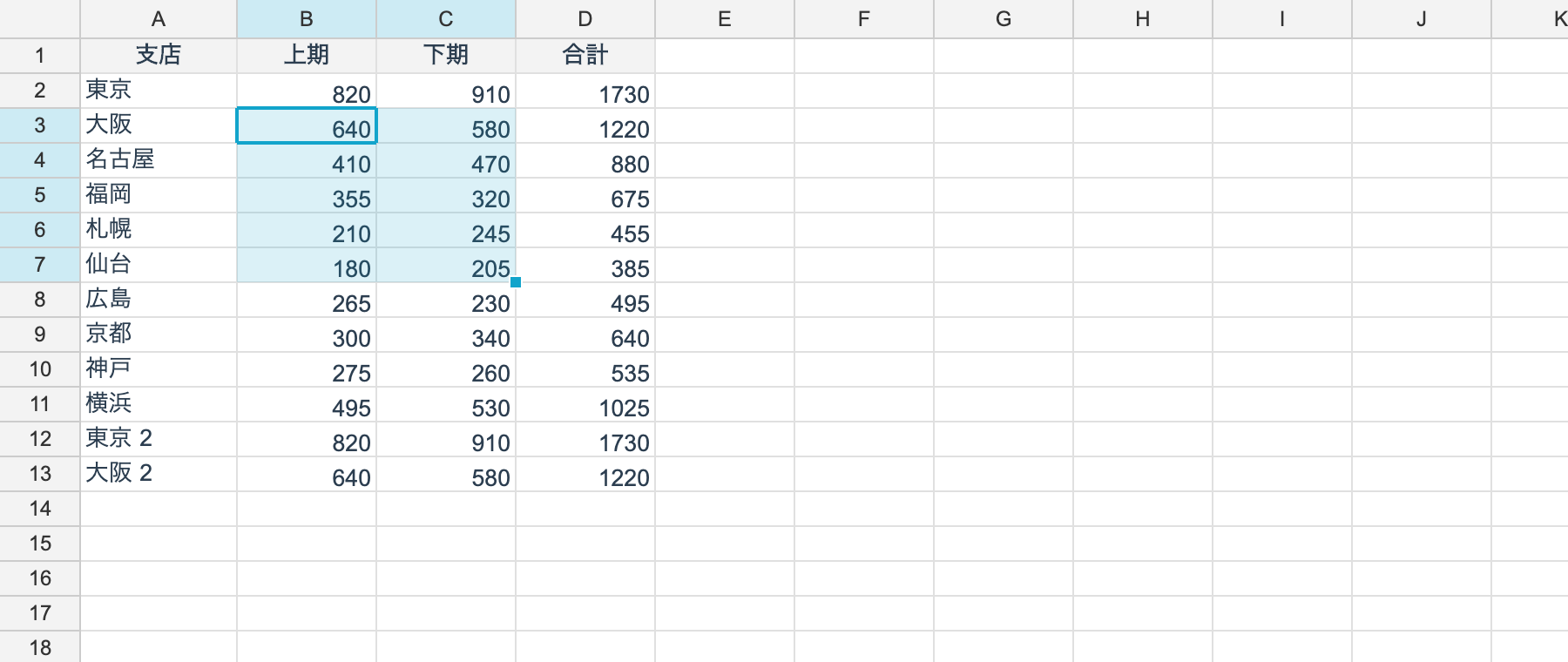
Reading and moving
| Member | What it is |
|---|---|
control.Selection | The selected range (RangePosition, read-only); the active area when there are several |
control.SelectionAreas | Every selected area (IReadOnlyList<RangePosition>); the last entry is the active one |
control.ActiveCell | The active cell (CellPosition, read-only) |
control.MoveTo(row, col) | Moves the active cell and collapses the selection to it |
control.SelectionChanged | Raised when the selection changes |
Working with the viewport directly, it is viewport.Selection / viewport.ActiveCell /
viewport.SetActiveCell(r, c) / viewport.ExtendSelectionTo(r, c) /
viewport.SelectColumn(col).
using unvell.ReoGrid.Core;
using unvell.ReoGrid.Core.Rendering;

viewport.SetActiveCell(2, 1);              // make B3 active (the selection collapses to B3)
viewport.ExtendSelectionTo(6, 2);          // extend to B3:C7

RangePosition selection = viewport.Selection;
CellPosition active = viewport.ActiveCell;

viewport.SelectColumn(3);                  // the whole of column D
viewport.SelectRow(0);                     // the whole of row 1
viewport.SelectAll();

// whether whole rows or columns are selected is answerable without inspecting the range
bool wholeColumns = viewport.SelectionIsWholeColumns;
Multiple selection (non-contiguous areas)
Ctrl+click — ⌘+click on macOS — adds an area. As in Excel’s “multiple selection”, the selection is not one rectangle but a list of them.
| Gesture | Result |
|---|---|
| Click / Ctrl+A / arrow keys | Collapses back to one area |
| Ctrl (⌘) + click or drag | Adds an area and makes it the active one |
| Ctrl (⌘) + click on a row / column header | Adds that whole row or column as an area |
| Shift+click / Shift+arrow | Extends the active area only; the others stay |
macOS takes ⌘ for more than convention’s sake: the OS turns Ctrl+click into a secondary click, so a Ctrl-only rule would fight the context menu. The command modifier (Ctrl on Windows and Linux, ⌘ on macOS) is the same one the cell editor and the Ctrl (⌘) + arrow data-edge jump already use.
The active cell always sits in the active area, and so does the fill handle.
using unvell.ReoGrid.Core;
using unvell.ReoGrid.Core.Rendering;

viewport.SetActiveCell(0, 0);              // A1
viewport.ExtendSelectionTo(2, 1);          // A1:B3 — the first area

viewport.AddSelectionArea(0, 4);           // open a second area at E1 (what Ctrl+click does)
viewport.ExtendSelectionTo(2, 5);          // extend it to E1:F3 — only the active area grows
viewport.AddColumnSelectionArea(7);        // the whole of column H as a third area

var areas = viewport.SelectionAreas;       // the last entry is the active area
bool many = viewport.HasMultipleAreas;
long cells = viewport.SelectionCellCount;
bool inside = viewport.SelectionContains(1, 5);   // in any area

// assigning collapses back to one area (what a plain click, a paste or a find hit does)
viewport.Selection = new RangePosition(0, 0, 1, 1);
Areas may overlap, and a bulk operation still touches a shared cell once:
RangeSet.Disjoint normalizes the list into non-overlapping rectangles first, so a relative
transform such as “increase indent by one” cannot apply twice.
Bulk operations on the selection
The control has a full set of helpers that act on the selection. Each one covers every selected area and folds them into a single Ctrl+Z. When whole rows or columns are selected they are routed to the row or column default style automatically, so nothing ever walks a million cells.
Formatting
| Member |
|---|
ToggleSelectionBold() / ToggleSelectionItalic() / ToggleSelectionUnderline() |
SetSelectionTextColor(color) / SetSelectionBackColor(color) |
SetSelectionFontFamily(family) / SetSelectionFontSize(size) |
SetSelectionHAlign(align) / SetSelectionVAlign(align) / SetSelectionWrap(wrap) |
SetSelectionNumberFormat(format) |
MutateSelectionStyle(s => s with { ... }) — any transformation |
Structure
| Member |
|---|
MergeSelection() / UnmergeSelection() — merging produces one merge per area, never one over their bounding box |
SetSelectionOutline(color, width) / SetSelectionAllBorders(color, width) / ClearSelectionBorders() |
InsertRowsAtSelection() / DeleteSelectedRows() |
InsertColumnsAtSelection() / DeleteSelectedColumns() |
SetSelectedRowHeight(h) / SetSelectedColumnWidth(w) |
AutoFitSelectedColumns() / AutoFitSelectedRows() |
SetSelectionCellType(type) |
Clipboard
CopySelection() / CutSelection() / PasteClipboard()
The clipboard is a rectangle, so copying several areas only goes through when they pack into one block — either they share their columns and stack vertically, or they share their rows and sit side by side. Anything else is refused with the same sentence Excel uses. See Clipboard.
Why the model does not hold the selection
V4 kept it on the model as worksheet.SelectionRange. V5 separates them so that showing one
worksheet through several views, and running headless, are both straightforward.
As a consequence, the selection is not saved to a file.
Keyboard
Arrow keys, Shift+arrow to extend, Ctrl+arrow to jump, Home / End and Page Up / Down are wired up by default.
viewport.StepTarget(dRow, dCol) only computes where a move would land, which is useful when
implementing your own key bindings.