
Display formatting is specified with the same format code strings as Excel. V4’s
CellDataFormatFlag and the *FormatArgs types are gone, which makes XLSX interop lossless.
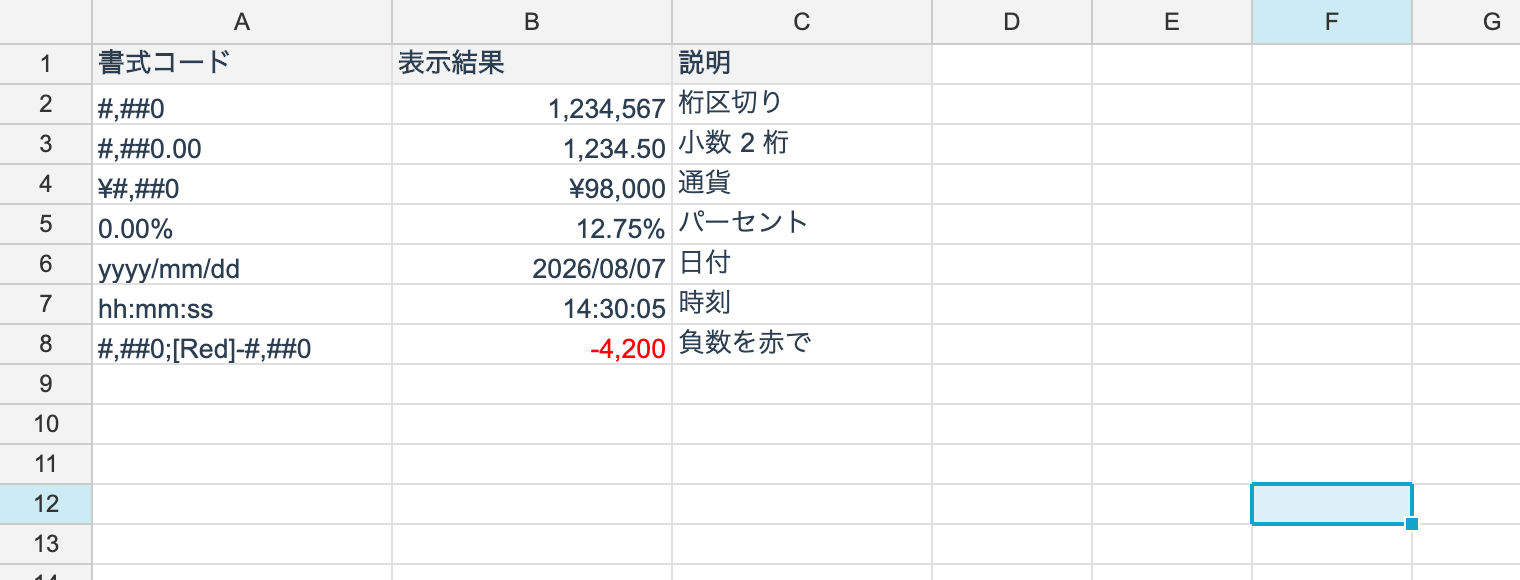
Applying a format
using unvell.ReoGrid.Core;

ws.SetNumberFormat(0, 0, "#,##0");
ws.SetNumberFormat(RangePosition.Parse("B2:B100"), "#,##0.00");
ws.SetNumberFormat(1, 0, "yyyy/mm/dd");
ws.SetNumberFormat(2, 0, "0.00%");

string? code = ws.GetNumberFormat(0, 0);
ws.SetNumberFormat(0, 0, null);      // remove the format
The range overload writes to every cell in the range you name.
SetSelectionNumberFormat on the control clamps to the used range, but the core API does
not — passing a whole column (A:A) creates a million entries, so keep the range down to the
data.
Reading the displayed text
string shown = ws.GetDisplayText(0, 0);

// the format code's color comes back too, if it has one ([Red] and friends)
string text = ws.GetFormattedText(0, 0, out uint? color);
Common format codes
| Code | Input | Displays as |
|---|---|---|
#,##0 | 1234567 | 1,234,567 |
#,##0.00 | 1234.5 | 1,234.50 |
0.00% | 0.1234 | 12.34% |
$#,##0 | 1200 | $1,200 |
yyyy/mm/dd | a date | 2026/07/28 |
mmm d, yyyy | a date | Jul 28, 2026 |
h:mm:ss | a time | 13:45:30 |
0.00E+00 | 12345 | 1.23E+04 |
# ??/?? | 2.5 | 2 1/2 |
@ | text | as-is |
Sections
A format code splits into up to four sections separated by ;.
positive ; negative ; zero ; text// four sections: positive; negative; zero; text
ws.SetNumberFormat(0, 0, "#,##0;[Red]-#,##0;\"-\";@");
// conditional sections
ws.SetNumberFormat(1, 0, "[>=1000000]0.0,,\"M\";[>=1000]0.0,\"K\";0");Omitting sections behaves as in Excel: one section applies to every number, two split positive and negative.
Colors
Color specifiers such as [Red] are supported. They override the cell’s text color at
render time.
| Available colors |
|---|
[Black] [Blue] [Cyan] [Green] [Magenta] [Red] [White] [Yellow] |
GetFormattedText(r, c, out uint? color) returns that color, or null when the format does
not name one.
Conditions
A condition such as [>=1000] can lead a section. They are evaluated top to bottom and the
first match is used.
Japanese eras (和暦)
The g tokens print the era name and the e tokens the year within that era, spelled exactly
as in Excel’s Japanese era formats.
| Code | 2025-06-09 displays as |
|---|---|
g | R |
gg | 令 |
ggg | 令和 |
e | 7 |
ee | 07 |
[$-411]ge.m.d | R7.6.9 |
[$-411]ggge"年"m"月"d"日" | 令和7年6月9日 |
y stays Gregorian even next to era tokens — the era year is e. Era years advance by
calendar year, as in Excel: 2019-04-30 is 平成31 and 2019-05-01 is 令和1.
The 元年 form
With the [$-ja-JP-x-gannen] tag an era’s first year prints as 元 rather than 1, at either
token width. Without the tag it prints as 1.
| Code | Input | Displays as |
|---|---|---|
[$-ja-JP-x-gannen]ggge"年"m"月"d"日" | 2019-05-01 | 令和元年5月1日 |
ggge"年"m"月"d"日" | 2019-05-01 | 令和1年5月1日 |
The era table
明治, 大正, 昭和, 平成 and 令和 are built in. The OS calendar data (the Windows registry, ICU)
is never consulted, so the same workbook renders the same text on every machine. When a new era
is announced before this library ships an update, register it at startup with
JapaneseEras.Register.
using unvell.ReoGrid.Core.Style;

ws.SetNumberFormat(0, 0, "[$-411]ggge\"年\"m\"月\"d\"日\"");

// a newly announced era can be registered at startup, ahead of a library update
JapaneseEras.Register(new JapaneseEra("X", "新", "新元", new DateTime(2035, 1, 1)));
XLSX files leave the locale-reserved numFmtIds (27–36, 50–58) without a format code; they are
read as the same era formats Excel-JP resolves them to. The TEXT worksheet function goes
through this engine too, so TEXT(A1,"ggge年m月d日") matches what the cell displays.
Scientific notation
A signed E after the digit placeholders — 0.00E+00 — gives scientific notation. E+
always prints the exponent’s sign, E- only a negative one, as in Excel.
| Code | Value | Shown |
|---|---|---|
0.00E+00 | 12345 | 1.23E+04 |
0.00E+00 | 0.00012345 | 1.23E-04 |
0.00E-00 | 12345 | 1.23E04 |
##0.0E+0 | 12345 | 12.3E+3 |
The number of integer placeholders in the mantissa sets the exponent’s step: one gives
ordinary scientific notation, three (##0.0E+0) give engineering notation — the exponent
moves in threes and the mantissa runs up to 999. When rounding carries the mantissa past its
width (9999 under 0.0E+00), the exponent steps up instead, giving 1.0E+04.
e is also the Japanese era-year token (ggge), so it reads as an exponent only when a sign
follows it and digit placeholders sit on both sides. ggge stays a date code.
Fractions
Placeholders on either side of a / give a fraction. An integer group ahead of the numerator
makes it a mixed number; without one it stays improper.
| Code | Value | Shown |
|---|---|---|
# ?/? | 2.5 | 2 1/2 |
# ?/? | 0.75 | 3/4 |
# ??/?? | 0.7 | 7/10 |
?/? | 2.5 | 5/2 |
# ?/4 | 2.6 | 2 2/4 |
A placeholder denominator takes the closest fraction that fits in that many digits (??
allows up to 99). A denominator written as digits is fixed, and — as in Excel — is not
reduced.
? pads with a space, so numerators are right-aligned and denominators left-aligned and a
column of fractions lines up on the slash. When the value comes out whole (5, or 0.999
under # ?/?), the fraction slot is left blank, again as in Excel.
Current limitations
The 1904 date system is not supported.
Formatting a value directly
Useful when you want to apply a format without going through a sheet.
using unvell.ReoGrid.Core.Style;

if (NumberFormatter.TryFormat(1234.5, "#,##0.00", out string text, out uint? color))
	Console.WriteLine(text);      // "1,234.50"
It returns false when the format cannot be applied — both for codes it cannot interpret and
for codes that do no formatting at all, such as General or an empty string.
Persistence
Number formats round-trip per cell through both reogrid-json and XLSX. In XLSX they are
written as numFmt, so opening the file in Excel shows the same thing.